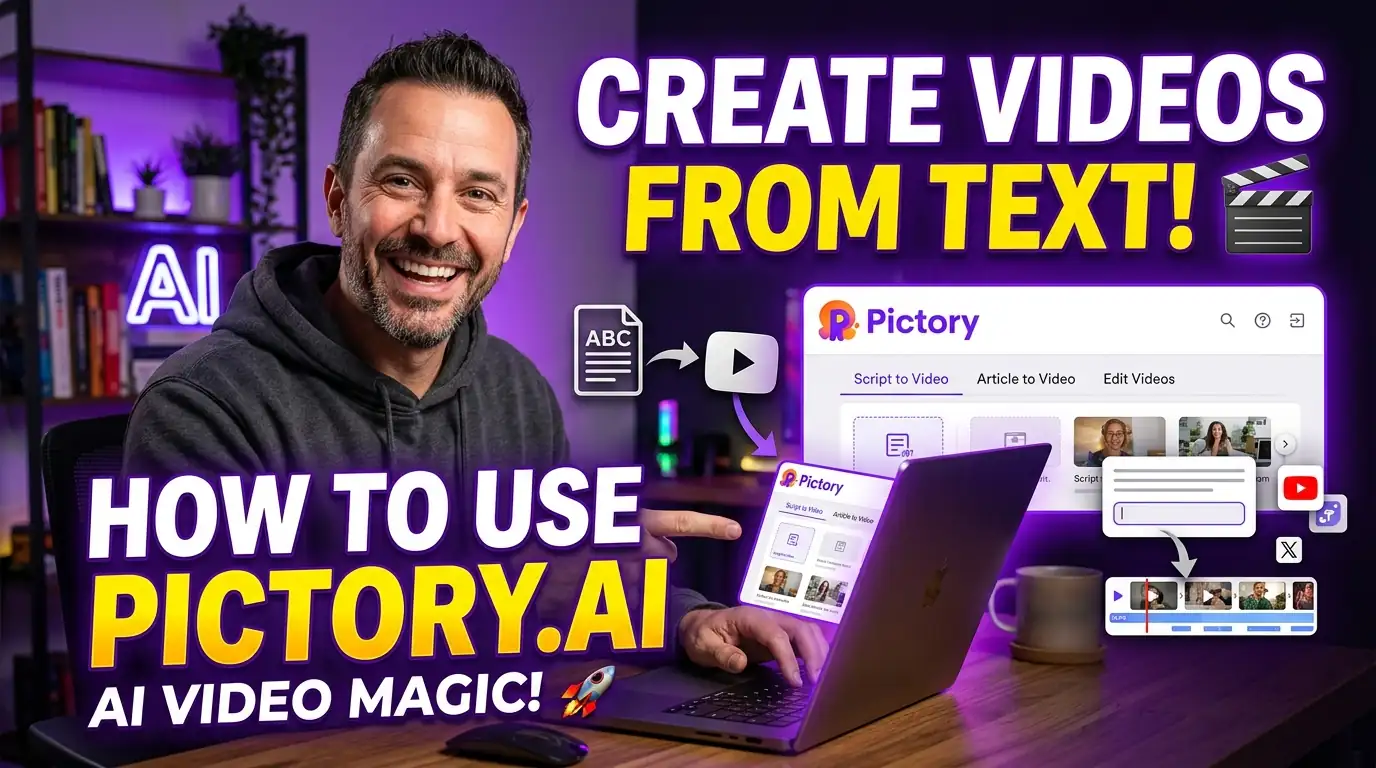
If you already write, whether that is blog posts, scripts, slide decks, or podcast transcripts, Pictory.ai is built to turn that text into a finished, captioned, voiced-over video without touching a traditional timeline editor. This guide walks through the exact process from account creation to export, covers every text-based input method Pictory supports, and breaks down what each pricing tier actually gets you in 2026.
Quick deal before we start: Use Promo Code: RHS20 at pictory.ai for 20% off any paid plan. See all active Pictory coupon codes →
1. What Pictory.ai Actually Does
Pictory is a text-to-video platform. Instead of dragging clips onto a timeline, you give it written content, a script you type, a blog URL, a PowerPoint, or an audio transcript, and its AI splits that text into scenes, matches each scene to stock or AI-generated footage from a library of more than 18 million assets, adds an automatic AI voiceover in 20+ languages, and generates timed captions. You end up in a storyboard-style editor where you review and adjust the result before exporting.
The platform also includes AI Studio, a prompt-based generative visual tool, and a growing set of AI avatars, but its core identity is still turning existing text into stock-footage-style explainer and social video fast.
2. What You Need Before You Start
- An account: sign up with an email address or a Google account. Pictory offers a short free trial capped at around 15 minutes of video and 720p exports, useful for testing the workflow before committing to a paid plan.
- Source text: a script, a blog post URL, a PowerPoint file, or an audio/video file with speech you want turned into a new video.
- A goal for aspect ratio: know whether you're publishing to YouTube (16:9), Reels/TikTok/Shorts (9:16), or a square feed post (1:1), since this affects how visuals are framed.
- Brand assets (optional): a logo, brand colors, and fonts if you want the video to carry consistent branding through Pictory's Brand Kit.
3. Step-by-Step: Text to Video in Pictory
This walkthrough uses Script to Video, the most direct way to turn written text into a video, but the same downstream steps apply to URL to Video and PPT to Video as well.
-
Create your account and open the dashboard
After signing up, you land on the Pictory Home Page. This is a simple launcher screen with tiles for each creation method: Script to Video, URL to Video, PPT to Video, Audio to Video, and Visuals to Video.
-
Choose "Text to Video," then "Script to Video"
Click the Text to Video tile and select the Script to Video option. You'll be dropped into a text box where you either paste an existing script or write one from scratch.
-
Paste or generate your script
Paste your written content directly, or use Pictory's built-in AI script generator if you only have a topic and want the AI to draft the script for you. Either way, you end up with editable text in the Script Editor.
-
Click "Generate Script" and review the draft
Pictory processes the text and returns a summarized, scene-ready script. Read through it in the Script Editor and rewrite any lines that don't sound right, this is the easiest point to fix tone or trim length before visuals get attached.
-
Set your scene, format, and brand options
In the right-hand panel, choose your aspect ratio (16:9, 9:16, or 1:1), decide how scenes should be segmented (by sentence or by line break), toggle automatic keyword highlighting, and apply your Brand Kit if you have one set up.
-
Click "Generate Video" and let the storyboard build
Pictory now matches visuals and captions to every line of the script and assembles a full storyboard. A loading screen appears while this happens, larger scripts naturally take longer to process.
-
Fine-tune inside the AI Video Editor
Once the storyboard is ready, you land in the full editor. Here you can swap any stock clip, adjust scene timing, change the AI voice, add background music, and preview the whole video before committing to an export.
-
Export and download
Paid plans export in 1080p. Once you're happy with the preview, export the video and download it, or push it straight to your publishing workflow if you've connected one.
4. Inside the AI Video Editor
The editor is organized into tabs, and understanding what each one controls makes revisions much faster:
- Story tab: edit the text and timing of each individual scene without leaving the storyboard view.
- Visuals tab: replace any auto-selected clip with something else from the stock library, an AI Studio generation, or your own uploaded footage.
- Audio tab: change the AI voiceover, pick from Pictory's ElevenLabs-powered voice library, and layer in background music from the built-in track library.
- Captions tab: adjust caption styling, font, and placement, useful for making sure text stays readable on mobile aspect ratios.
Because everything is scene-based, you can also use text-based editing on uploaded footage: delete a sentence in the transcript and Pictory removes the matching video section automatically, which is faster than scrubbing a timeline by hand.
Good to know: Pictory runs entirely in the browser, there's no desktop or mobile app for creating videos, though exported files can obviously be viewed and shared anywhere.
5. Other Ways to Feed Pictory Text
Script to Video isn't the only path. Depending on what you're starting with, one of these may save you a step:
- URL to Video: paste a blog post or article link and Pictory extracts the key text, summarizes it, and builds a script and storyboard automatically, ideal for repurposing existing content you've already published.
- PPT to Video: upload a PowerPoint file and Pictory converts each slide's content into a narrated video scene.
- Audio to Video: upload a podcast episode or voice recording and Pictory transcribes it, then builds visuals around the spoken content.
- AI Studio (prompt to video): for a more generative approach, AI Studio lets you type a visual prompt and generate original AI video clips rather than pulling from stock, useful for scenes stock footage simply can't cover.
6. Pictory Pricing at a Glance
Pictory prices around video minutes rather than a flat seat fee, and generative extras (AI Studio clips, avatar video) draw from a separate AI Credits pool. Here's the annual-billing breakdown as of 2026:
| Plan | Starter | Professional | Team |
|---|---|---|---|
| Annual price | $25/mo | $35/mo | $119/mo |
| Video minutes | 200/mo (2,400/yr) | 600/mo (7,200/yr) | 1,800/mo (21,600/yr) |
| AI Video Editor cap | 1 hour | 3 hours | 3 hours |
| Export resolution | 1080p | 1080p | 1080p |
| Stock library | Storyblocks | 18M+ Getty & Storyblocks | 18M+ Getty & Storyblocks |
| Brand kits | 1 | 5 | 10 |
| Users | 1 | 1 | 3+ |
A free trial is available, capped at roughly 15 minutes of video and 720p exports, enough to run through the full workflow above and see whether it fits how you work before subscribing. AI Credits for generative avatars and AI Studio clips are allocated separately from video minutes, so heavy avatar use can burn through credits faster than the minute count alone suggests.
7. Pro Tips for Better Results
Do this
- Write in short, visual sentences, Pictory matches stock footage per sentence, so clearer sentences get better visual matches
- Use Preview Script before generating the full storyboard to catch pacing issues early
- Set up a Brand Kit once and reuse it across every project for consistency
- Manually swap any clip that feels generic, the auto-match is good but not perfect
Avoid this
- Don't paste unedited walls of text, break it into clean paragraphs first for cleaner scene segmentation
- Don't skip the aspect ratio setting, changing it after the storyboard is built means re-cropping every scene
- Don't rely on AI Studio generative clips for every scene on lower tiers, they draw from the separate credit pool and run out fast
8. Common Mistakes to Avoid
Most frustration with any text-to-video tool comes from treating the first draft as the final product. Pictory's storyboard is meant to be edited, scene by scene, not exported the moment it finishes generating. Spend a few extra minutes in the Visuals and Audio tabs before export: it's the difference between a video that looks auto-generated and one that looks intentional.
The second common mistake is picking a plan based on price alone. If your videos are mostly under 60 seconds for social, the Starter plan's video minutes will stretch a long way. If you're producing longer explainer or training content regularly, the jump to Professional for the larger stock library and longer editor cap usually pays for itself quickly.
Bottom line: the fastest way to get a good result from Pictory is to give it a clean, well-structured script, set your format before generating, and treat the storyboard as a first draft you refine, not a finished export.
9. Save With a Pictory Coupon Code
Ready to try the workflow above on a paid plan? Don't pay full price, there's a verified, working Pictory discount code you can use right now.
For more verified offers, check the full list of Pictory coupon codes on our homepage, updated monthly.
Final Thoughts
Pictory turns the writing you already do, scripts, blog posts, slide decks, transcripts, into a finished video without asking you to learn a traditional editor. The workflow above works the same way whether you're starting from a script, a URL, or a PowerPoint: generate a script, set your format, review the storyboard, fine-tune scene by scene, then export. For creators and marketers publishing regularly from existing text, that repeatable process is the whole appeal, especially with a working Pictory promo code like RHS20 taking 20% off the first bill.